Blogs / How To / How to Automate a Study Report Using Gemini in Google Sheets: A Step-by-Step Guide
Blogs / How To / How to Automate a Study Report Using Gemini in Google Sheets: A Step-by-Step Guide

Primebook Team
12 Aug 2026
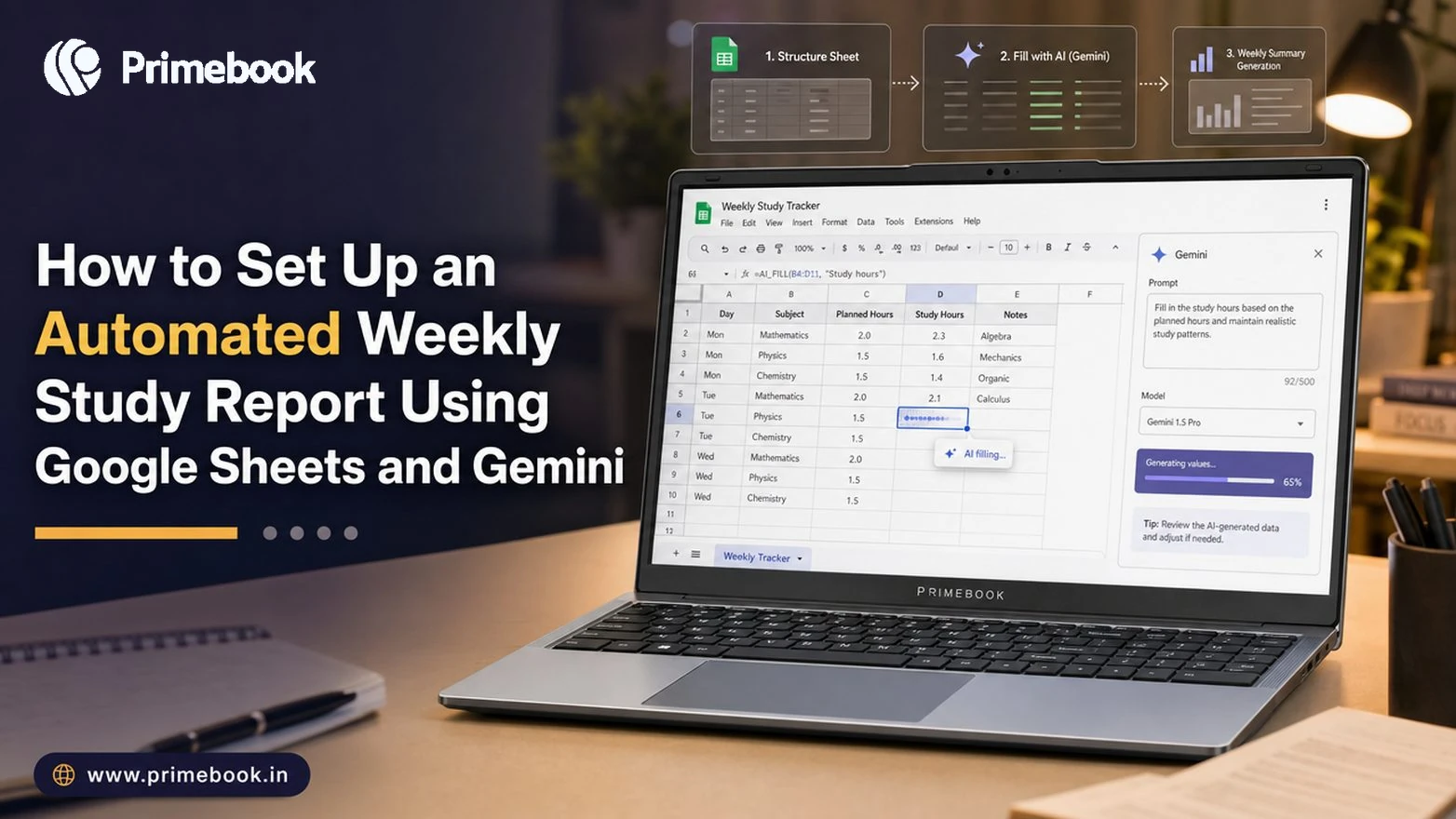
How to Automate a Study Report Using Gemini in Google Sheets: A Step-by-Step Guide
Introduction
Most students track study progress in their heads or across scattered notes, which means by Sunday nobody actually knows how many hours went into revision or which subject got ignored. A weekly study report fixes that, but building one by hand every week becomes another chore that gets dropped by week three.
That is where Gemini inside Google Sheets changes the equation, simplifying much of this setup. You can use it to create or edit spreadsheets, generate formulas, organise data, and give instructions using natural-language prompts. This guide shows you how to build a study-tracking sheet with Gemini, automate repetitive parts of the process, and generate a weekly summary from your study data.
What You Need to Set Up
Before opening Google Sheets, decide what information you want to track and how you want your weekly report to summarise it.
| Tab | Purpose | Sample columns |
|---|---|---|
| Daily Log | Records each study session | Date, Subject, Hours, Topic, Task Status |
| Weekly Summary | Summarises your progress for the week | Total Hours, Subject-wise Hours, Tasks Completed, Areas to Improve |
You can add separate tabs for test scores or subject-wise tracking if you want to monitor those metrics separately.
Step-by-Step: Build Your Study Report with Gemini
Open a blank Google Sheet, open Gemini from the Sheets interface, and use the following prompts to build your study report.
- Generate the structure: Type: "Create a study report with two tabs: Daily Log and Weekly Summary. In Daily Log, include Date, Subject, Hours, Topic, and Task Status. In Weekly Summary, include Total Hours, Subject-wise Hours, Tasks Completed, and Areas to Improve."
- Generate subject-wise totals: In the Weekly Summary tab, ask Gemini: "Calculate the total study hours for each subject from the Daily Log and display them in the Subject-wise Hours section."
- Highlight subjects needing attention: Prompt Gemini: "Highlight subjects with less than three hours of study during the current week in red." Conditional formatting applies without you touching the menu.
- Optional: If your Google Workspace account supports Gemini's access to relevant emails and files, you can ask Gemini to identify assignment deadlines from your connected sources and add them to your study tracker.
These prompts give you the basic structure, calculations, and highlights needed for a weekly study report. Review Gemini's output before relying on the results.
Automating the Repetitive Log Entries
Entering repeated information into a study log can become tedious over time. The April 2026 update lets you reduce that effort; Fill with Gemini can populate data 9x faster than manual entry for a 100-cell task.
It works two ways. First, if a column has at least one completed cell, you can use the drag-and-drop entry point to fill the column based on the context of the table. You can also select an empty multi-cell range and use a prompt to generate the required entries.
For example, if your Daily Log already has a list of subjects or recurring tasks, you can select the relevant cells and ask Gemini to fill them according to your pattern. This saves you from entering the same type of information repeatedly while keeping the rest of the study log under your control.
Generate a Weekly Study Summary with Gemini
Once your Daily Log contains the entries for the week, you can use Gemini-powered features in Google Sheets to analyse the data and generate a short weekly summary.
In the Weekly Summary tab, prompt Gemini with something like: “Summarise this week's Daily Log in three points: total study hours, the subject that received the most attention, and the subject that received the least attention.” It analyses the log and generates the requested summary. Gemini in Sheets scored 70.48% on SpreadsheetBench, a benchmark that evaluates how well AI can autonomously manipulate complex, real-world spreadsheets. While this does not measure the accuracy of a study summary specifically, it demonstrates Gemini's ability to work with structured spreadsheet data.
Common Mistakes That Break the Workflow
A few simple data-entry mistakes can make your weekly report less useful. Keep these three points in mind:
- Inconsistent subject names: Writing "Maths" one day and "Mathematics" the next can cause them to be treated as separate entries. Use the same subject name throughout your Daily Log.
- Mixing formats in the Hours column: Entering values such as “2h” alongside numeric values such as “2” can interfere with calculations. Use numbers consistently, such as
2for two hours. - Combining generated and manual notes: Keep your own observations in a separate column from Gemini's generated summary so you can update the report without losing your notes.
Also Read:
Conclusion
The real benefit comes after the report has been running for a few weeks. You can compare how your study time is distributed, see which subjects consistently receive less attention, and identify whether your routine is changing over time. That makes the report useful beyond a single week's summary: it becomes a record you can use to adjust how you study.
FAQ
Is Gemini in Google Sheets free to use?
Access to Gemini in Google Sheets depends on your Google account and Workspace or Google AI plan. Google makes some Gemini features available only to eligible plans, so availability may vary by account.
What should I do if Gemini fills in the wrong information?
Review the generated entries before relying on them. If the result is incorrect, refine your prompt by specifying the subject names, date range, or pattern you want Gemini to follow, then check the updated cells.
Do I need to know spreadsheet formulas for this?
No. Gemini writes formulas, builds tables, and applies conditional formatting from plain-language prompts, so you describe what you want rather than typing SUMIF or COUNTIF yourself.
Can I change the prompts after creating the report?
Yes. You can give Gemini additional instructions to modify the report, such as adding a column, changing the information included in the weekly summary, or adjusting how the data is organised.
Editorial Transparency: Primebook's editorial team uses a combination of human expertise, research, and AI-powered tools to create and refine content. Every article is reviewed and validated by our team before publication to ensure accuracy, clarity, and usefulness for readers.


 Related Blog