How to Use NotebookLM to Convert Lecture PDF into Audio

Table of Contents
- Introduction
- What NotebookLM Actually Does With a PDF
- Step-by-Step: Convert PDF to Audio
- Tuning the Audio for Real Revision
- When Lecture Audio Actually Helps
- Common Mistakes to Avoid
- Conclusion
- FAQ
Introduction
Lecture PDFs pile up faster than anyone reads them. Slides from a morning class, scanned notes shared on WhatsApp, a 40-page reading assigned before the next tutorial: by the time exam week arrives, most of it is untouched. The friction is not the content; it is the format. Reading dense material after eight hours of screen time is where revision quietly breaks down.
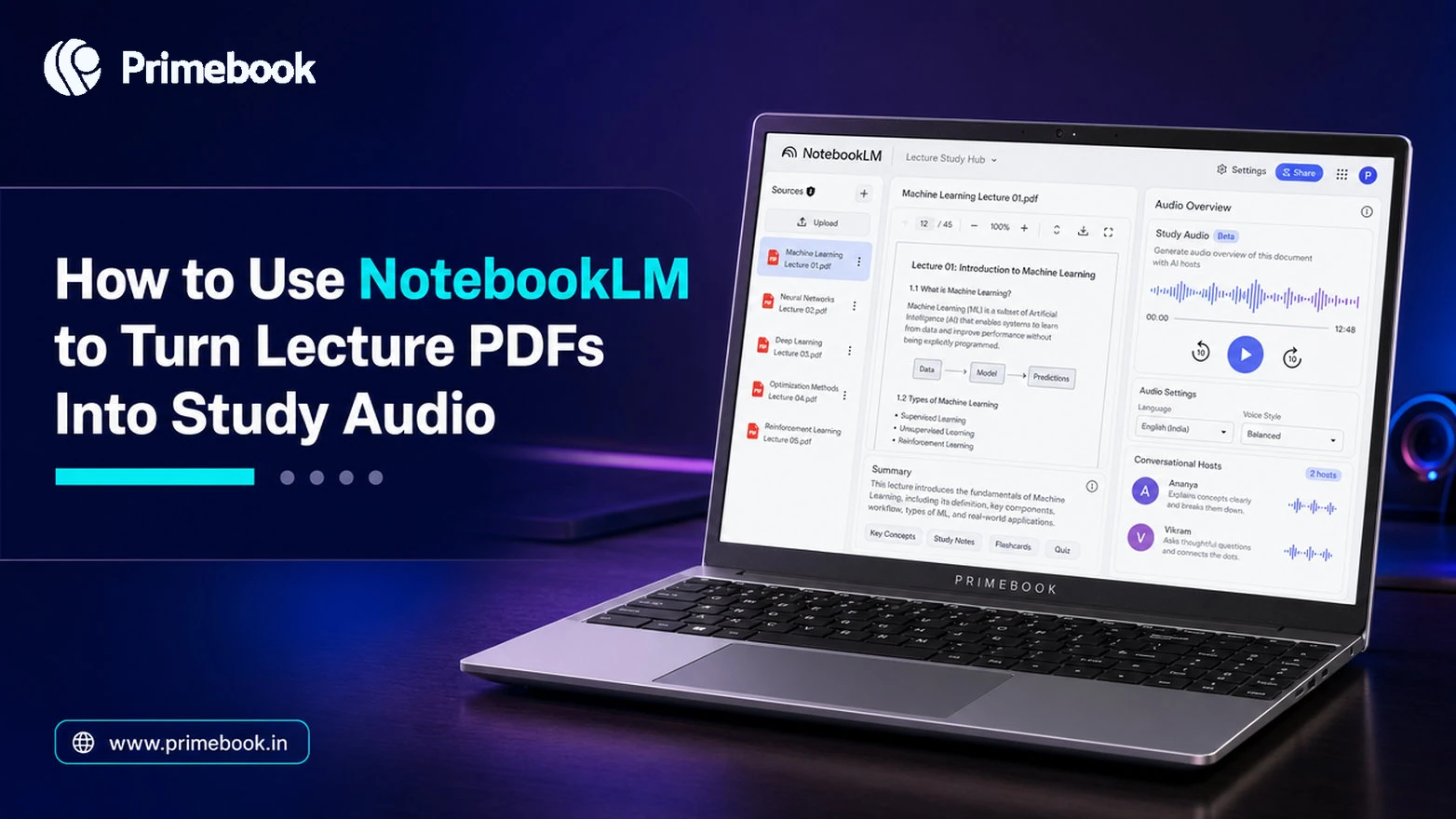
NotebookLM changes how you consume the content. Instead of reading a PDF, it generates an Audio Overview, which is a conversational discussion between two AI hosts based on the sources you upload. That means the same lecture becomes something you can play during a commute, a walk, or a low-energy revision window when reading feels impossible.
This guide walks through the exact workflow, how to tune the output for study rather than passive listening, and where the tool genuinely helps versus where it does not.
What NotebookLM Actually Does With a PDF
NotebookLM is Google's source-grounded AI research tool. Unlike a general-purpose chatbot, NotebookLM grounds its responses in the sources you upload rather than relying primarily on broad web knowledge. According to Google's product page, supported sources include PDFs, websites, YouTube videos, audio files, Google Docs and Slides.
The audio feature is called Audio Overview. Its default format is a Deep Dive discussion between two hosts who unpack and connect topics from your uploaded sources. For a lecture PDF, this reads less like a robotic text-to-speech dump and more like two teachers walking through the material together.
Step-by-Step: Convert PDF to Audio
The flow is short. Do not overthink it.
- Open NotebookLM at notebooklm.google.com and sign in with your Google account.
- Create a new notebook for the subject or chapter. Keep one notebook per topic, not one giant notebook for the whole semester.
- Upload your lecture PDF as a source. You can add multiple PDFs to the same notebook if the topics connect (for example, three chapters on thermodynamics). Then, wait for NotebookLM to finish processing the document before generating an Audio Overview. Larger PDFs may take a little longer to become ready.
- Open the Studio panel on the right and select Audio Overview.
- Customise before generating (this is the step most students skip and later regret). Choose the language, pick a length (Shorter, Default, or Longer), and add a prompt telling the hosts what to focus on.
- Click Generate. Google notes the audio is created in the background, so you can keep working on notes or open another notebook meanwhile.
- Download or play once ready. The audio sits inside the notebook and can be replayed anytime.
Setting up a notebook usually takes only a few minutes. Audio generation then runs in the background, with processing time varying depending on the size and complexity of the uploaded document.
Tuning the Audio for Real Revision
Default output is fine for a first pass. It is not enough for exam revision. The prompt field is where study-specific tuning happens.
Instead of leaving it blank, give the hosts a job. Useful prompt patterns:
- "Focus on the derivations in chapter 4, skip the historical background."
- "Explain this at an undergraduate level, assume the listener knows basic calculus."
- "Discuss the three case studies in detail and connect them to the theory."
- "Emphasise definitions and formulas a student would need to memorise."
- Length choice matters too. Shorter works for quick revision passes before a class. Longer suits deep-dive weekend sessions when you want the hosts to slow down and expand.
When Lecture Audio Actually Helps
Audio revision is not a replacement for reading, solving problems, or writing answers. It is a specific tool for specific windows.
Common Mistakes to Avoid
Three patterns break the workflow:
- Dumping every PDF into one notebook. The hosts try to connect unrelated topics and the audio loses focus. One subject or one theme per notebook.
- Skipping the prompt. Default Deep Dive is generic. A ten-word prompt turns generic revision into targeted revision.
- Treating audio as the whole study session. Listening is passive. Pair the audio with a notebook where you jot down two or three questions the discussion raised. That converts passive input into active recall.
Also Read:
- How to Use Google Scholar for Academic Research?
- How to Scan Answer Sheets Using Adobe Scan?
- Top AI Tools You Must Try in 2025 (With Real Use Cases)
Conclusion
Studying is not just about how many hours you put in, but how effectively you use the hours you already have. Tools like NotebookLM do not replace textbooks, lectures, or problem-solving. Instead, they make learning possible during moments that would otherwise go unused. As AI-powered study tools continue to evolve, their biggest advantage may not be faster learning, but making education adapt more naturally to the way people actually learn and live.
FAQ
Is NotebookLM free to use for students?
The core NotebookLM experience is available with a Google account. While Google also offers premium AI plans with additional features, Audio Overview is available in the standard NotebookLM experience where supported. Check Google's official NotebookLM page for the latest availability and plan details.
How long does it take to generate audio from a PDF?
Generation runs in the background and typically takes a few minutes, depending on document length and the chosen output length. You can continue using the notebook or switch to another one while it processes.
Can I upload scanned handwritten notes as a PDF?
Yes, NotebookLM accepts PDFs as a source type. However, it works best when the text is clear and machine-readable. Poor-quality scans or non-searchable PDFs may lead to incomplete or less accurate Audio Overviews.
Can the hosts speak in Indian languages?
NotebookLM allows you to choose the output language in the Audio Overview settings. Availability of specific Indian languages depends on ongoing Google rollouts, so check the language dropdown inside your notebook before generating.
Should I stop reading textbooks and only listen?
No. Audio suits passive windows like commutes and low-energy revision. Reading, problem-solving, and written practice remain essential for exams that test written recall and numerical skill. Use audio as an added layer, not a replacement.
Editorial Transparency: Primebook's editorial team uses a combination of human expertise, research, and AI-powered tools to create and refine content. Every article is reviewed and validated by our team before publication to ensure accuracy, clarity, and usefulness for readers.