Blogs / How To / How to Set Up DigiLocker for Academic and Government Document Verification
Blogs / How To / How to Set Up DigiLocker for Academic and Government Document Verification

Primebook Team
12 Jun 2026
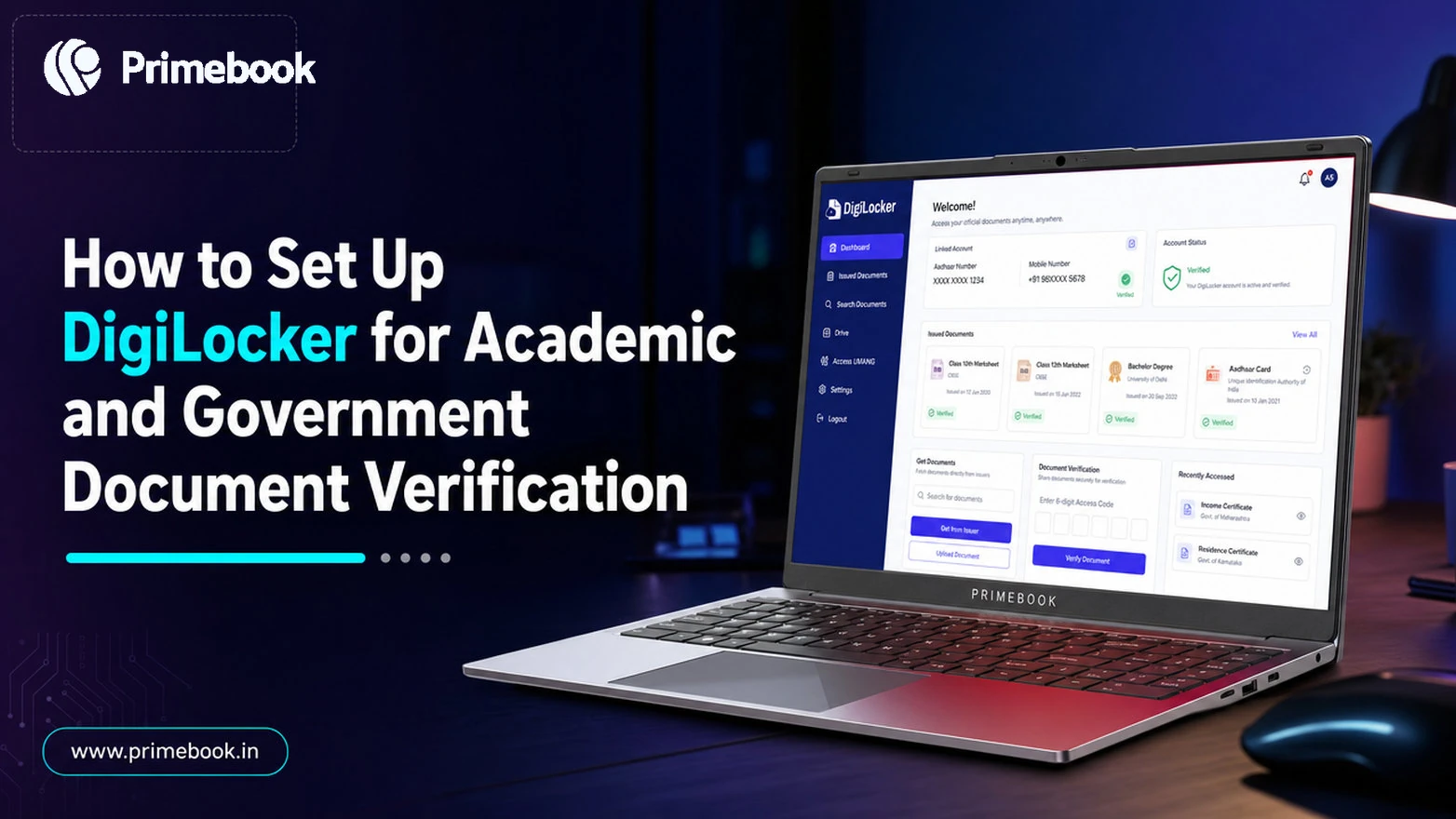
How to Set Up DigiLocker for Academic and Government Document Verification
Table of Contents
- Introduction
- What is DigiLocker and Why It Matters in 2026
- How to Setup DigiLocker Account India: Step by Step
- How to Pull Academic Documents into DigiLocker
- How to Use DigiLocker for Verification
- Common Setup Issues and Quick Fixes
- Conclusion
- FAQ
Introduction
Carrying mark sheets in plastic folders to college admissions, internship interviews, and government office counters has quietly become unnecessary. DigiLocker, the cloud-document platform under the Digital India programme, now holds over 80 crore authentic digital educational certificates from Central Boards and more than 30 state education boards, which means most students reading this already have verifiable copies of their records sitting on a government server waiting to be claimed.
The reason to set up an account is not storage convenience. It is legal recognition. Under Rule 9A of the IT Rules 2016, documents issued or shared via DigiLocker are legally equivalent to physical originals. This guide focuses on the setup of the DigiLocker account in India process, pulling academic records, and using them for verification without friction.
What is DigiLocker and Why It Matters in 2026
DigiLocker is a secure cloud-based platform for storage, sharing and verification of documents built under the Digital India programme. It works alongside systems such as Aadhaar and CKYC, helping users store and share verified documents across institutions and services.
What makes DigiLocker useful in practice is its legal recognition. Documents fetched directly from the issuer (your board, your university, the transport authority) carry a verified status that requesters can validate either online by scanning the secure QR code or offline through the DigiLocker app scanner. That removes the physical-attestation round-trip that used to consume entire afternoons.
How to Setup DigiLocker Account India: Step by Step
The signup is Aadhaar-linked. Keep your Aadhaar number and the mobile number registered with it ready before starting.
- Open the DigiLocker website or install the official DigiLocker app.
- Tap Sign Up. Enter your full name as per Aadhaar, date of birth, gender, mobile number, email, and a six-digit security PIN.
- Verify the mobile OTP, then enter your 12-digit Aadhaar number.
- Authenticate with the OTP sent to your Aadhaar-linked mobile. If your Aadhaar mobile is inactive, update it at an enrolment centre before continuing - this is the single biggest setup blocker.
- Set a username (this becomes your login ID) and confirm your PIN.
The reason DigiLocker insists on an Aadhaar OTP is to bind the account to a verified identity, which is what allows issued documents to have legal-equivalence status.
How to Pull Academic Documents into DigiLocker
Once signed in, the next step is fetching, not uploading. Self-uploaded files do not get the verified tag.
- Open the Issued Documents section.
- Search for your issuer: CBSE, ICSE, your state board, or your university. The National Academic Depository flow lets you select your board or university, enter roll number and year of passing, and pull your award directly.
- Enter the requested details (roll number, year, certificate number). Submit.
- The document arrives under Issued Documents within seconds for digitised boards, or within a few minutes for older records.
The same flow works for non-academic essentials: driving licence (Parivahan), PAN (Income Tax Department), vehicle RC, and ration card where available. Consider fetching commonly used academic and identity documents during the initial setup itself to avoid repeated searches later.
Also Read: How to Fill Online Forms Automatically Using AI
How to Use DigiLocker for Verification
Verification has two directions: you sharing a document, or someone verifying one you sent.
To share, open the issued document and tap Share. You can send a secure link or QR code via email or chat. The receiver opens the link and sees the certificate alongside an issuer signature. Delhi University, for instance, has used the system to verify more than 1 lakh documents, and the same workflow now runs across most central universities and PSU recruiters.
For offline verification (counters, exam halls, field officers), the verifier uses the DigiLocker scanner app on any Android device to scan the QR code on a printed or on-screen document. The scan returns the original issuer record, marking the document authentic without an internet round-trip dependency on your phone.
Also Read: Free Digital Marketing Course by the Government of India
Common Setup Issues and Quick Fixes
| Issue | Likely Cause | Fix |
|---|---|---|
| Aadhaar OTP not arriving | Mobile not linked to Aadhaar | Update at the nearest enrolment centre, retry after 24 hours |
| Document not found in Issued list | Board has not digitised that year | Contact board for digital push, or upload to Uploaded Documents as a backup (not legally equivalent) |
| Username already taken | Common name collision | Add initials or year of birth |
| QR scan returns expired | Shared link past validity window | Regenerate share link from issued document view |
| Verifier refuses DigiLocker copy | Awareness gap, not legal gap | Cite Rule 9A of IT Rules 2016, which mandates acceptance |
Conclusion
Setting up DigiLocker is less about adopting a new app and more about retiring an old habit of carrying paper. Once the account is configured and documents are fetched, the process largely moves into the background, remaining available whenever a record needs to be produced, shared, or verified.
Also Read: Free Government-backed Cybersecurity Courses
FAQ
Is a DigiLocker account free to create and use?
Yes. DigiLocker is provided by the Government of India under the Digital India programme at no cost. There is no premium tier, and all storage and verification features are available to every Aadhaar-holding citizen.
Can I open a DigiLocker account without Aadhaar?
No. Aadhaar OTP authentication is mandatory because it is what gives the account its verified-identity status. Without that binding, documents in your account would not carry the legal equivalence that makes verification useful.
What if my university or board is not listed under Issued Documents?
Many older or smaller institutions are still onboarding. In the interim, you can upload a scanned copy under Uploaded Documents, but note these copies are personal storage only and do not carry verified-issuer status until the institution joins the network.
Are DigiLocker documents legally accepted by all government departments and employers?
Yes. Under Rule 9A of the IT Rules 2016, documents issued or shared via DigiLocker are legally equivalent to physical originals, and requesters are bound to accept them. If a verifier refuses, citing this rule usually resolves the situation.
How do I verify a DigiLocker document someone has shared with me?
Open the shared link in any browser to view the issuer-signed copy, or use the DigiLocker scanner app to scan the QR code on the document. Both methods return the original issuer record, confirming authenticity without needing a printed copy.
Editorial Transparency: Primebook's editorial team uses a combination of human expertise, research, and AI-powered tools to create and refine content. Every article is reviewed and validated by our team before publication to ensure accuracy, clarity, and usefulness for readers.
 Related Blog